Blinds, antes & breaks
Build and edit every blind level and time interval. Choose no ante, big-blind ante or individual antes. Add regular or color-up breaks and choose when add-ons are allowed.
 THE RIVERTOURNAMENT CLOCK SOFTWAREGet THE RIVER $29
EVERY DETAIL, WORKING TOGETHER
Poker tournament timer and management software for Windows: blind levels, seating, TV Broadcast, dealer controls and payouts in one app.
Build and edit every blind level and time interval. Choose no ante, big-blind ante or individual antes. Add regular or color-up breaks and choose when add-ons are allowed.
Start from a starter schedule or one of 61 editable WSOP Hold’em schedules. Adjust stacks, levels, intervals and breaks to suit your event.
Use full screen or a separate audience window. The sliding control bar overlays the clock without shrinking the display. Increase clock, blind and payout text independently. Optionally show the local time of day in 12-hour or 24-hour format.
Eight local voice profiles announce levels, breaks and player departures. Type your own announcement, choose transition sounds and adjust the volume. No paid voice subscription is required.
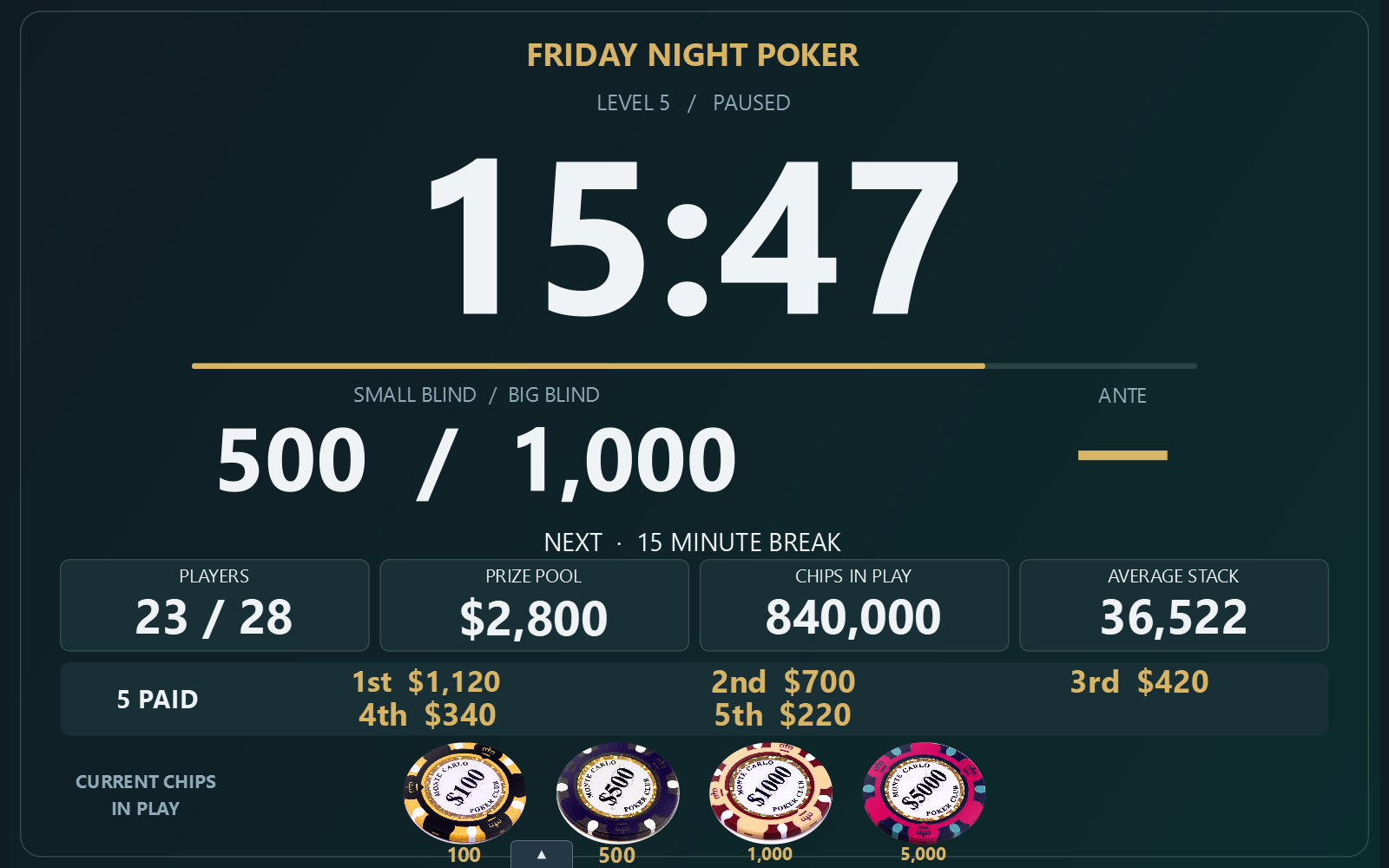
Put your tournament on a larger TV without connecting another HDMI cable. TV Broadcast shares the running clock from your Windows computer to browser-equipped TVs on the same local network, alongside your existing computer displays.
In the software, open Settings > TV Broadcast, then choose Start TV Broadcast. Type the displayed http:// address into Silk or another TV browser. Enter the viewing PIN when enabled. The address is specific to your computer.
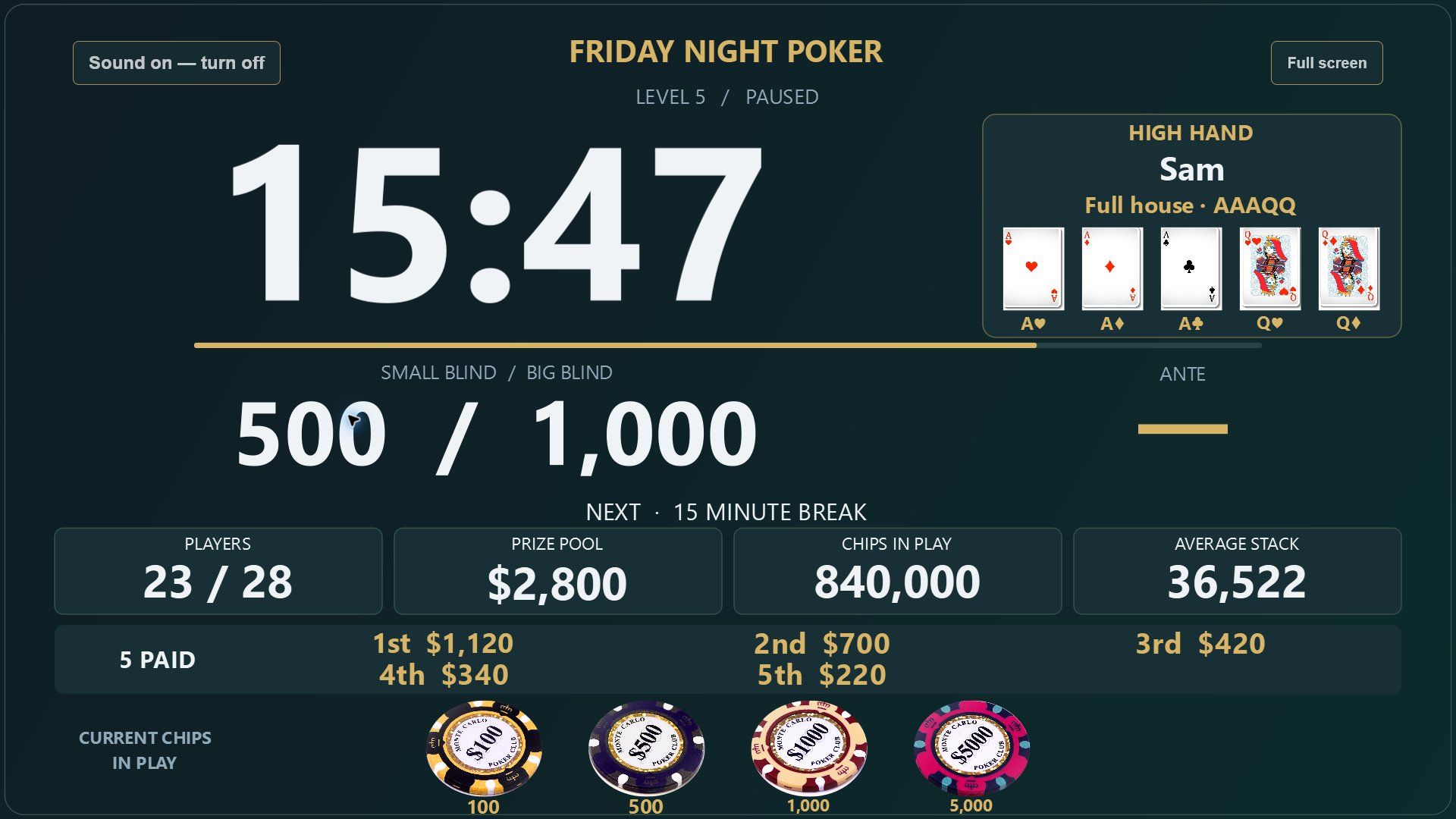
The browser shows the actual clock picture, including your colors, logo, custom chip images, High Hand cards, blind levels and payouts. Choose Full HD or 4K quality to suit the TV and computer. In version 0.4.17 and later, each TV can enable announcements and alerts with its own sound button. The software also offers an option to mute the computer while broadcasting.
Several TVs can view the same running tournament. The software prepares one shared picture, so adding a TV adds network traffic rather than another clock-rendering job. Start with Full HD for lower processing and bandwidth use; the practical number of TVs depends on your computer and local network.
TVs are display-only: they cannot pause the clock, change a game or browse tournament files. A viewing PIN is enabled by default. Broadcasting starts off each time the software opens, and the viewer warns if its connection stops updating.
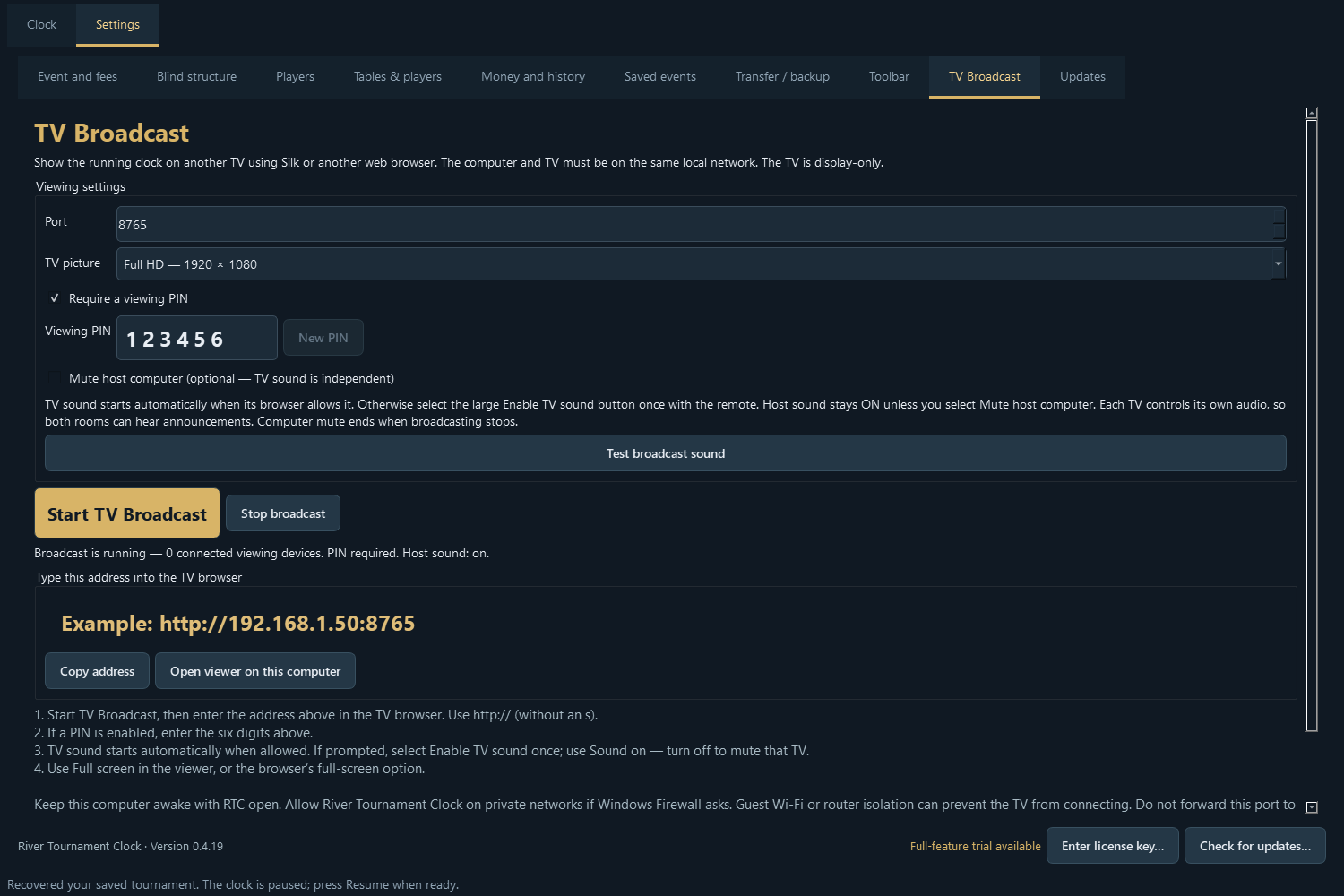
In version 0.4.18 or later, TV sound starts automatically when the browser allows it. If autoplay is blocked, select the large Enable TV sound prompt near the top with the remote. The controls sit inside TV-safe margins and work in normal/mobile mode. Sound on — turn off mutes that TV independently. Host/computer sound stays on by default. Leave Mute host computer unchecked to hear announcements in the host room and on a TV in another room. Each TV controls only its own audio; host mute is optional. Test broadcast sound checks the setup. The live countdown updates independently of background pictures and audio loading in version 0.4.19 and later, helping it stay current while announcements play. Audio can still have some playback delay; optional mute can prevent echoes when speakers are in the same room. The browser remembers an explicit mute. Some browsers still require a remote click after reloading; the software cannot override their autoplay policy.
Keep the Windows computer awake with the software open. Connect the TV and computer to the same Wi-Fi or wired network, with communication between devices allowed. If Windows Firewall asks, allow THE RIVER — Tournament Clock Software on private networks. Guest Wi-Fi isolation can block connections.
Use the local HTTP address shown in the software. Do not forward its port to the internet. Each viewing TV is included with the organizer computer license; another organizer computer needs its own license. Full-screen and sleep behavior vary by TV browser, so test your TV before an event.
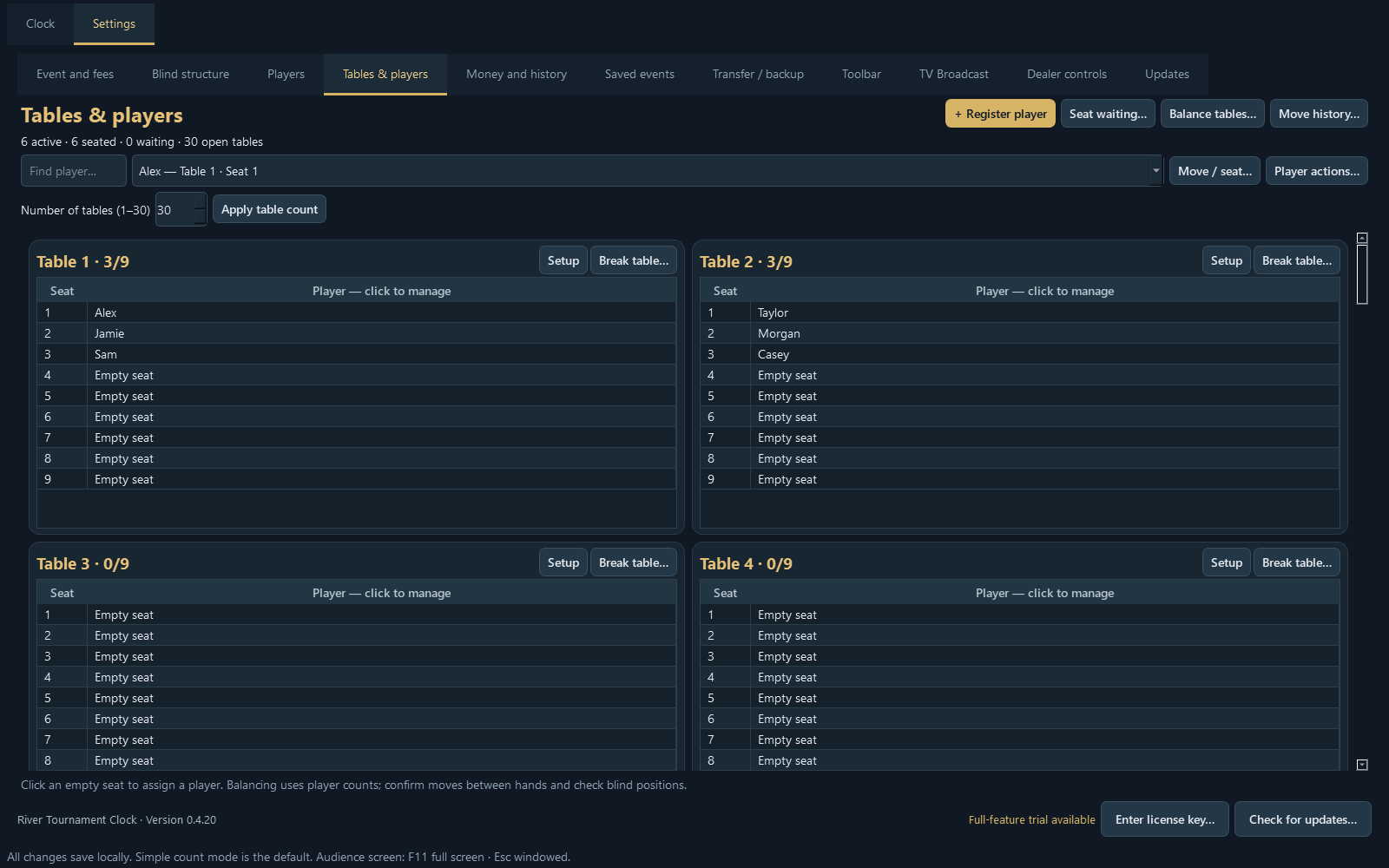
All features included, whether you run 1 table or 30. Set your table count and scroll through the room layout. Manage the room from one organizer computer. Each table supports 2–10 seats, for up to 300 seated players.
Use the on-screen keyboard to register a player and record their buy-in. Assign a seat, find a player by name, or leave them waiting until a seat is ready.
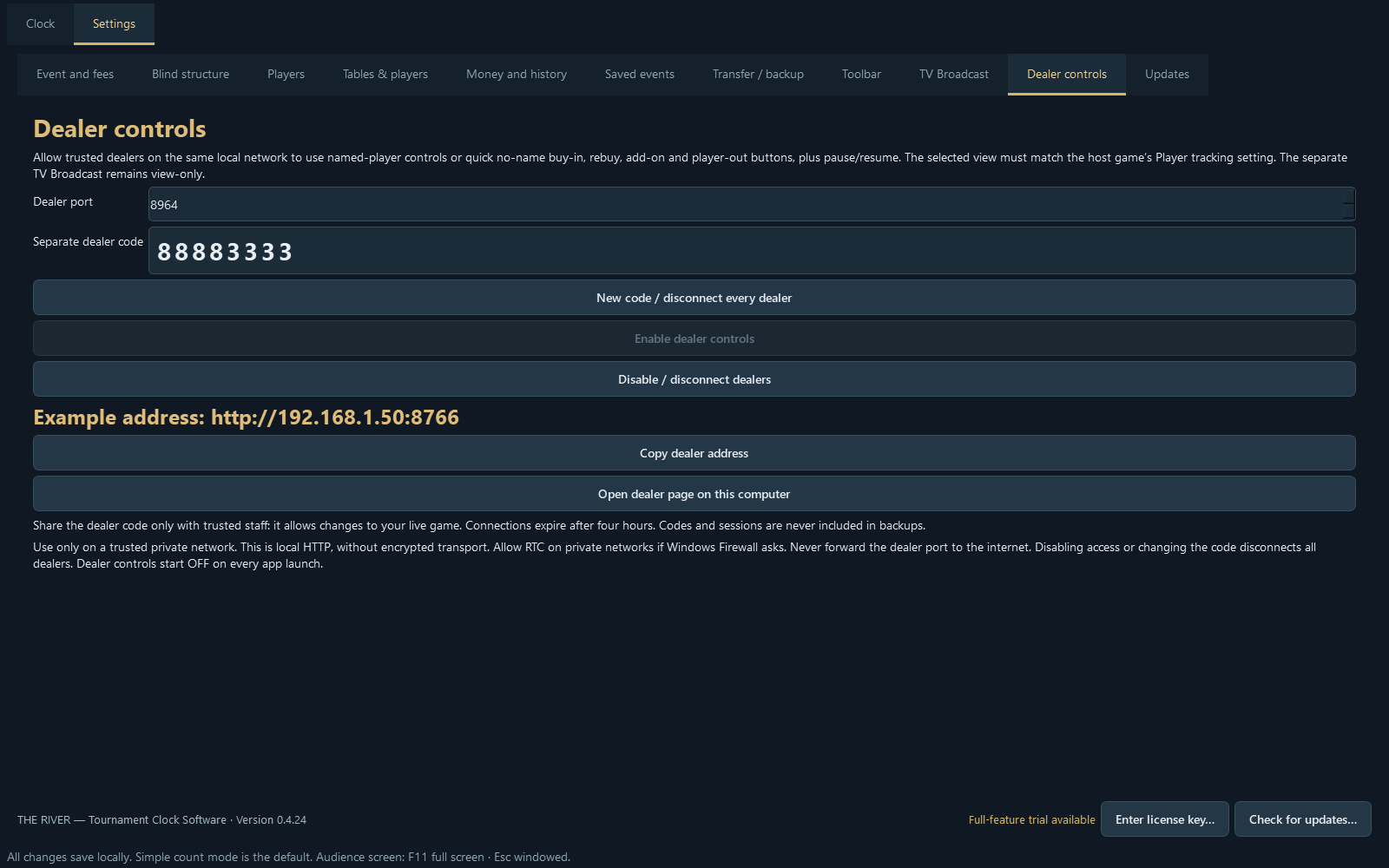
Enable a separate local browser page for trusted staff, protected by its own eight-digit code. Dealers can register or eliminate players, record rebuys and add-ons, assign seats, and pause or resume the clock. The TV display stays view-only. Disable dealer access at any time.
Move a player between open seats and keep their identity. THE RIVER records their old and new table and seat, along with the time of the move.
Preview suggestions based on table counts, then confirm between hands. Break a table by moving its players into open seats. You stay in control of blind positions and final seating choices.
Record an elimination, rebuy or add-on for a named player. Unseating keeps a player active; elimination releases their seat while retaining recorded money and issued chips.
Enable a separate local control page for trusted staff. Dealers can register players, record rebuys and add-ons, move seats, eliminate players and pause or resume the clock. Choose Game with player names or Game with no player names to match the host game. No-name games have quick buy-in, rebuy, add-on and player-out buttons without selecting a player. Previous level and Next level move through the schedule, including breaks, and restore the selected row’s full time. Pause/running state is kept. Actions apply immediately without confirmation pop-ups. Share its own eight-digit code; the TV viewer stays read-only.

Scroll within the phone preview to explore the controls, or open the complete dealer screen.
Set prices, starting stacks and chip amounts. A rebuy adds chips and money without counting as another registered player. Previous purchases keep their original recorded values when you edit future prices.
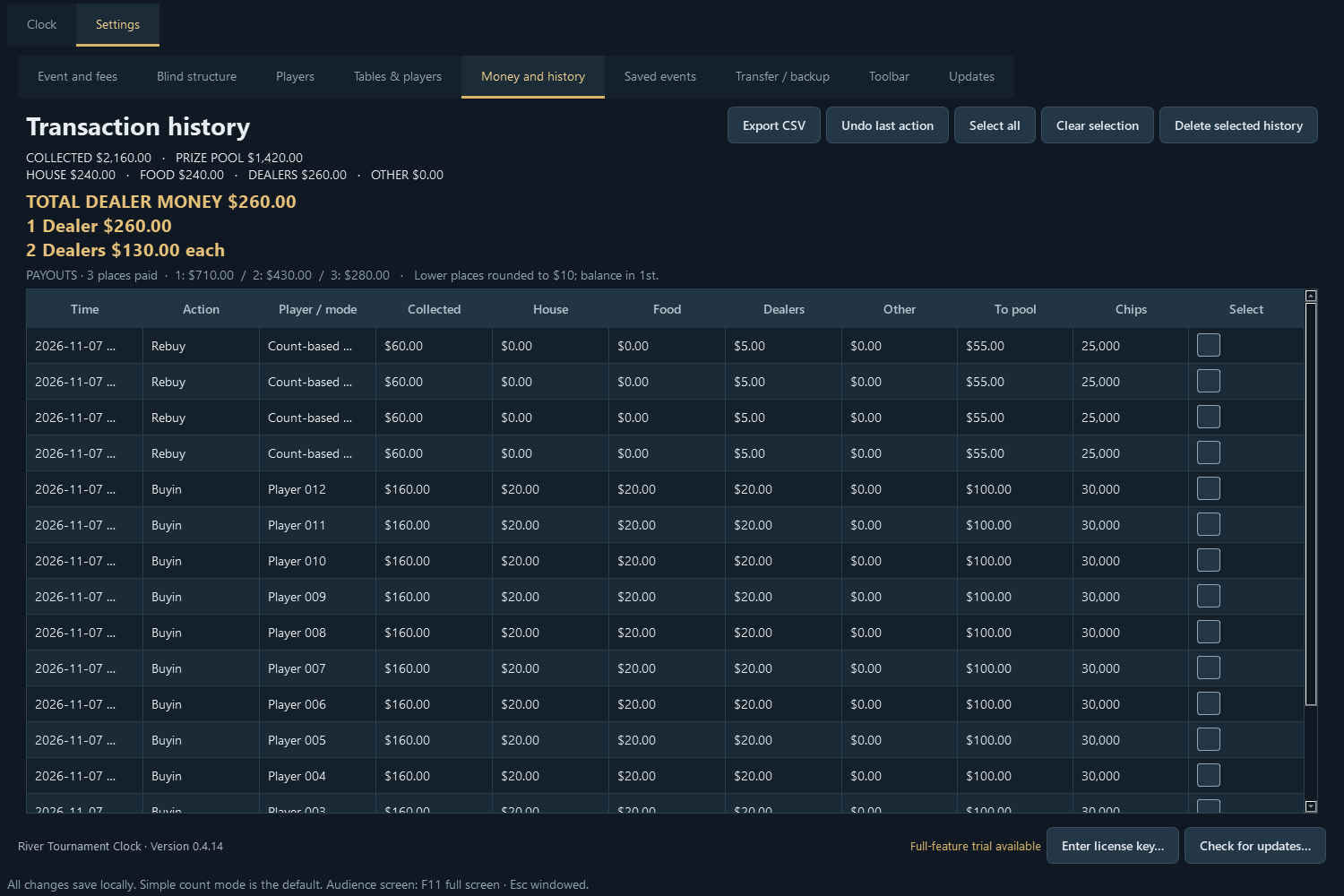
Track house, food, dealer and other fees separately from the prize pool. View total dealer money, the amount for one dealer, or equal shares for two dealers.
Use editable player-count tiers, percentage splits or fixed payouts. Automatic tiers use registered entries, with lower places rounded and the remaining balance assigned to first place.
Review transactions and export CSV history. Correct actions or delete selected history after a confirmation and backup. Related entries are handled together to keep totals consistent.
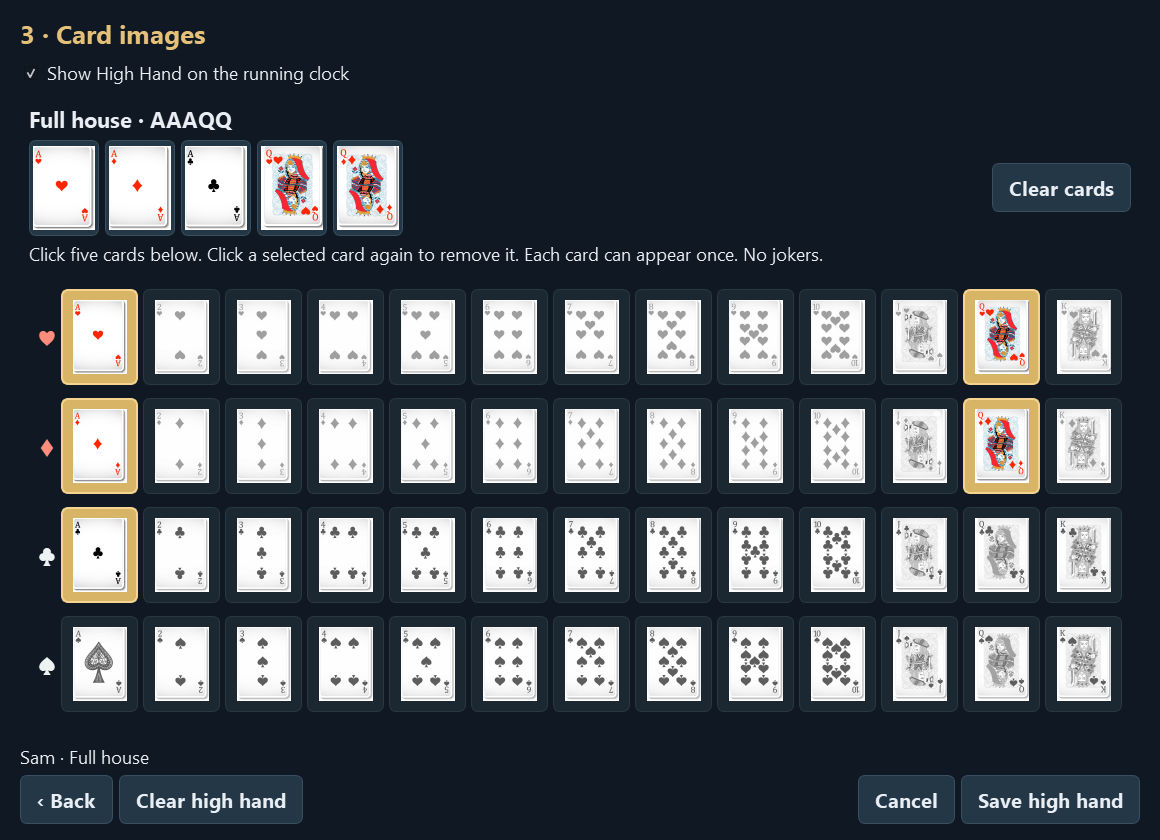
Display the current holder, hand type and five card images beside the countdown—for example, Full house · AAAQQ. Use standard cards from all four suits, with no jokers.
Click letters to enter a name, choose the hand type and select cards. Post the name and type first, then add the card images later. The selected cards are checked against the chosen hand.
Keep multiple named sets of your own chip photos. Add up to 24 denominations per set, name their values and choose which set the clock displays.
Choose when denominations enter play and when to remove them at the end of a level. Configure color-up breaks and announcements without changing the recorded tournament chip total.
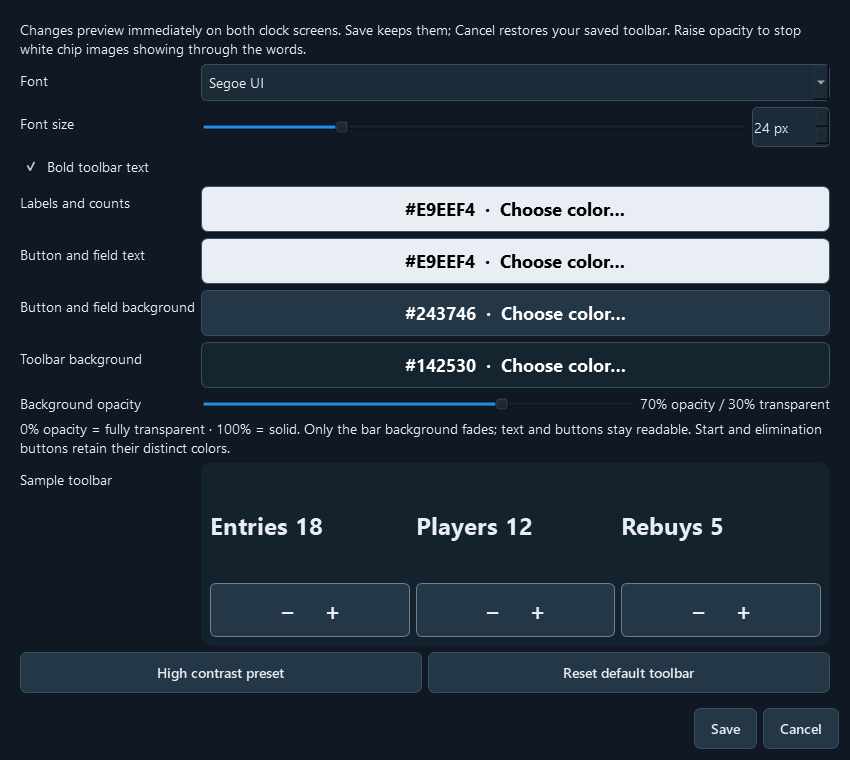
Choose the toolbar font, size, bold text, label and button colors. Adjust its transparency and move the arrow tab along the bottom edge with a long click and drag.
Choose your clock logo, background, accent and individual text colors. Adjust the display for the screen and viewing distance in your room.
Save an event as a named setup. Once linked, saving blinds, chip rules, prices or display settings updates that setup too. Save over an existing setup name after confirmation.
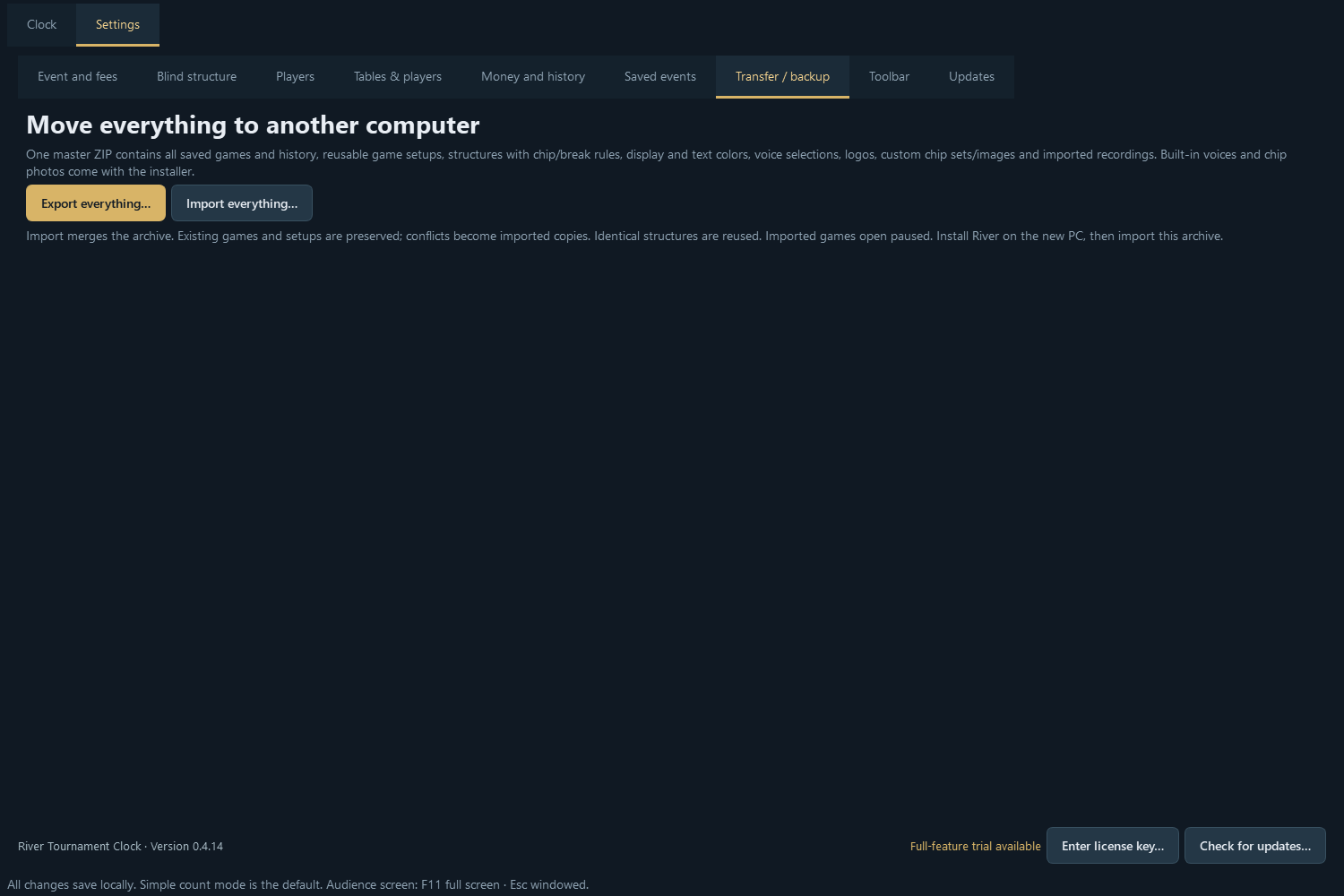
Export games, reusable setups, structures and custom resources together. Import them on another installation while preserving existing records. Computer activation stays separate from tournament backups.
THE RIVER reopens a saved game paused after a shutdown. Use the on-screen number pad to restore a level and a time such as 9:47 without converting it to seconds.
THE RIVER checks for new releases and offers a manual Check for updates button. Read the changes, download a verified installer and install when you are ready to pause and close the clock.
$29 USD · One computer license · No monthly subscription
Get THE RIVERYour $29 license activates one Windows computer. Version 0.4.23 uses a Windows-protected device key and hashed hardware identifiers, with up to seven days between successful online checks. Running tournaments continue if a check fails. Your games stay local; copying a tournament backup does not transfer activation. Contact support when replacing your computer.